Sharing Files and Messages with Mindlog
After logging in, the first thing you will see in ZeyOS is the Mindlog dashboard. It shows all activities and messages from other users in one central location.
Mindlog works across all modules and serves as the main tool for communication between users and groups in ZeyOS. It can also be used as a noticeboard, a platform for sharing content (text, image, video, files, ...), an internal blog or a discussion space regarding a specific element or module.
Probably the biggest advantage of Mindlog is the ability to completely dispense with internal emails. No more forwarding, no more enquiries by e-mail - you can simply visualise processes via Mindlog and discuss them there. This keeps your inbox clean and free for external communication. New employees also benefit from this approach, as you can also access older internal conversations without having to laboriously forward the corresponding emails. With Mindlog, all you need to do is assign new employees to the appropriate user group or enable access via other means.
Every user with access authorisation can publish comments that relate to a specific object. This means that questions, suggestions, explanations, etc. are not left floating in the room, but can be directly assigned to an object. This means that the user reading the mindlog entry can be forwarded directly to the associated object. This enables a quick exchange, whereby information, such as the processing status, can be brought up to date.
Basics
The search bar in the main menu can be used to search for messages on a specific topic or filter by entity.
Mindlog helps you manage and follow all the objects and communication related to your team's effort. It records everything that's going on and allows you to categorize and share everything.
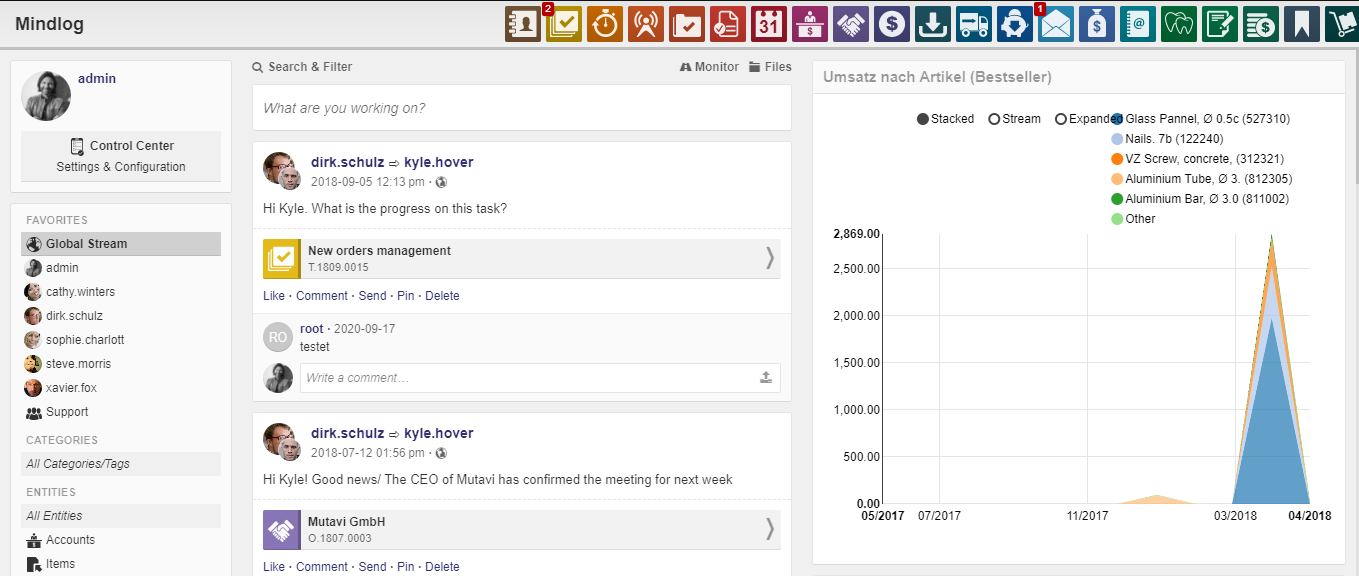
You can create mindlog records directly

or share any ZeyOS object. This is done via the right menu bar of the object to which the entry belongs to. All entries belonging to an object can also be viewed here. Let's say you have created an attendance list with Notes and you want to share it with a certain group of colleagues. First, check the visibility (ownership) of your note and set it according to the people you want to share it with. Here's how you can do it:
How can I change visibilities and ownerships of any object?
Now go to Records choose "Add an entry" and write your message.
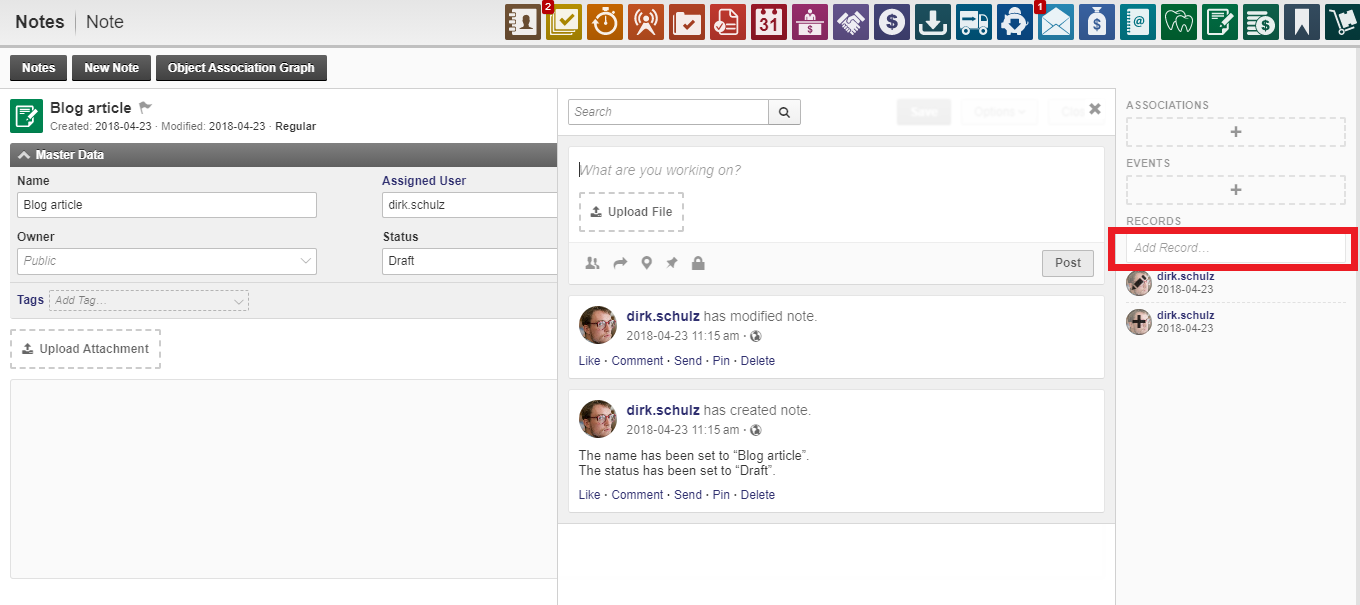
You can set the visibility of your message as with objects via Owner. Here you can find the possibilities "Private" and "Public" as well as the selection of groups. It is also possible to write messages directly to a certain person. That is done at Recipient.
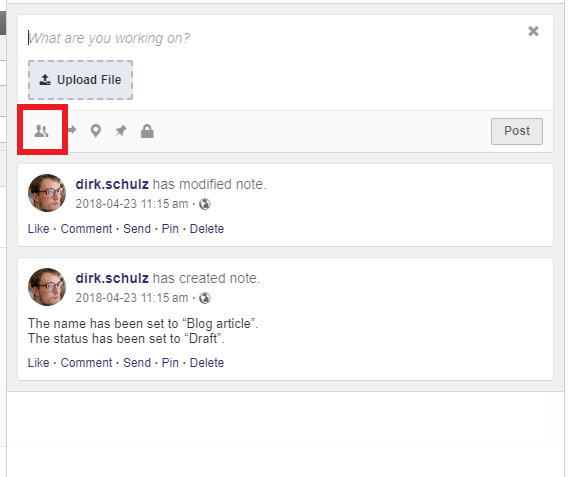
A comment that is only visible to the user himself serves as a private note about an event, contact, etc.
You can also upload a document, add a location, select a specific recipient, and determine a date by which the message should be pinned.
Click post. Now your message appears in the Mindlog.
If you just want to add a short memo to an object that should not appear in Mindlog, you can check the box Hide from Mindlog. Messages that are only relevant to the specific object can be excluded from the global message stream so that there is no spam.