Managing Permissions
The rights system in ZeyOS
One central concept in ZeyOS is shared information access. This means that any object in ZeyOS - no matter if it's a contact, a quote or an e-mail - can either belong to a group, an individual user or all users (public).
The rights system can be divided into two different areas: Access to functions (Founding of Groups) and access to objects (Owners of Objects).
At the beginning, the user has no rights and therefore cannot use any of the apps.
Creating groups
The administrator uses a group to restrict the rights to applications (=functions) for its users. When setting up/editing a group, functions can be selected to which the added members have access. A user who is a member of several groups can use all applications that are unlocked within these groups. You can either add the authorized users when creating or editing groups or you can choose which groups of these users should belong to when editing user profiles.
If you want each user to have access to all features, it is a good place to create a group that grants access to all applications and add each user in advance.
NOTE: If a user is to be given new rights and therefore added to a new group, the user must then log in again for the change to take effect. Simply reloading the page would not be sufficient in this case.
Owners
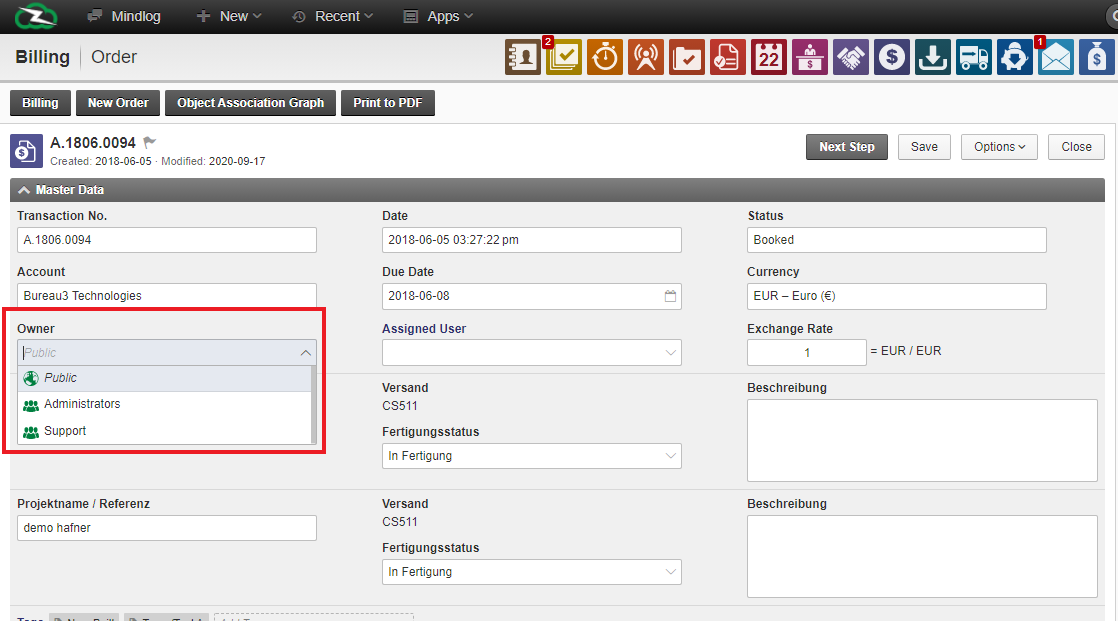
In addition, objects can have different owners. An object is any content within the platform, such as accounts, appointments, emails, documents, etc. There are several options when choosing the owner: • Public • Private • Groups
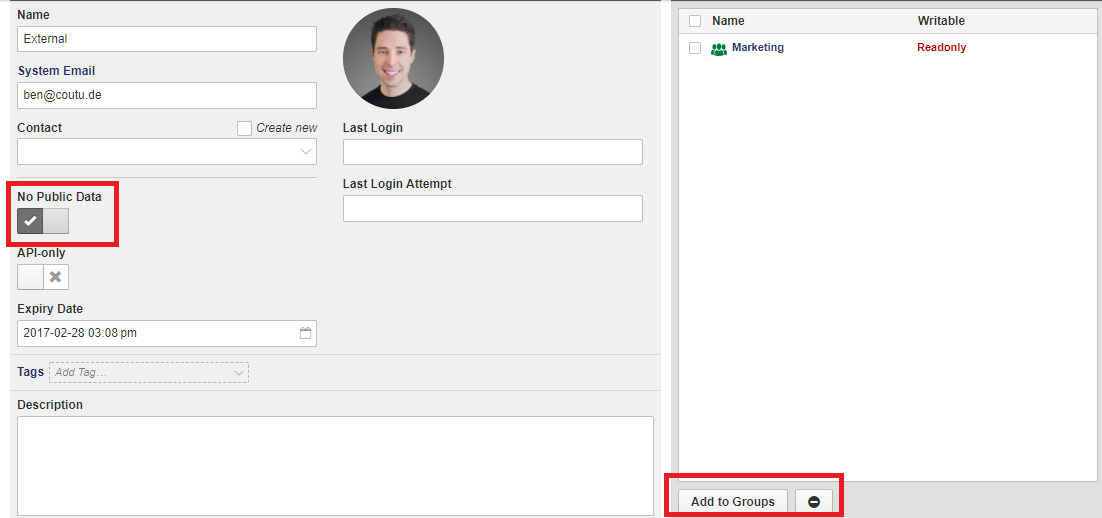
Basically, a user can view all objects that are marked as "common". If this function is to be switched off, this can be regulated via the user profile. To do this, you simply have to click on the "No shared data" button, which means that the user only has the rights of his group(s) explicitly. If a user is neither the owner nor in the owner group and the object is not "Public", he/she will not be able to access it.
 For some objects (e.g. activity) it makes sense to limit the view only to themselves, so that no other user has access to it. This is done by using the "Private" option.

Alternatively, a group (e.g. Administrators, Support) can be chosen as the owner. It must be considered that you can only choose the groups to which you belong as a member.
If a user has access to the module containing a specific object, but not to the object itself, only some salient information, e.g. the name of the object, will be visible in the overview and in any linked object.
Adding users and groups
To find out how to add users and groups, simply open our tutorial on Adding users and groups.