Personal Settings
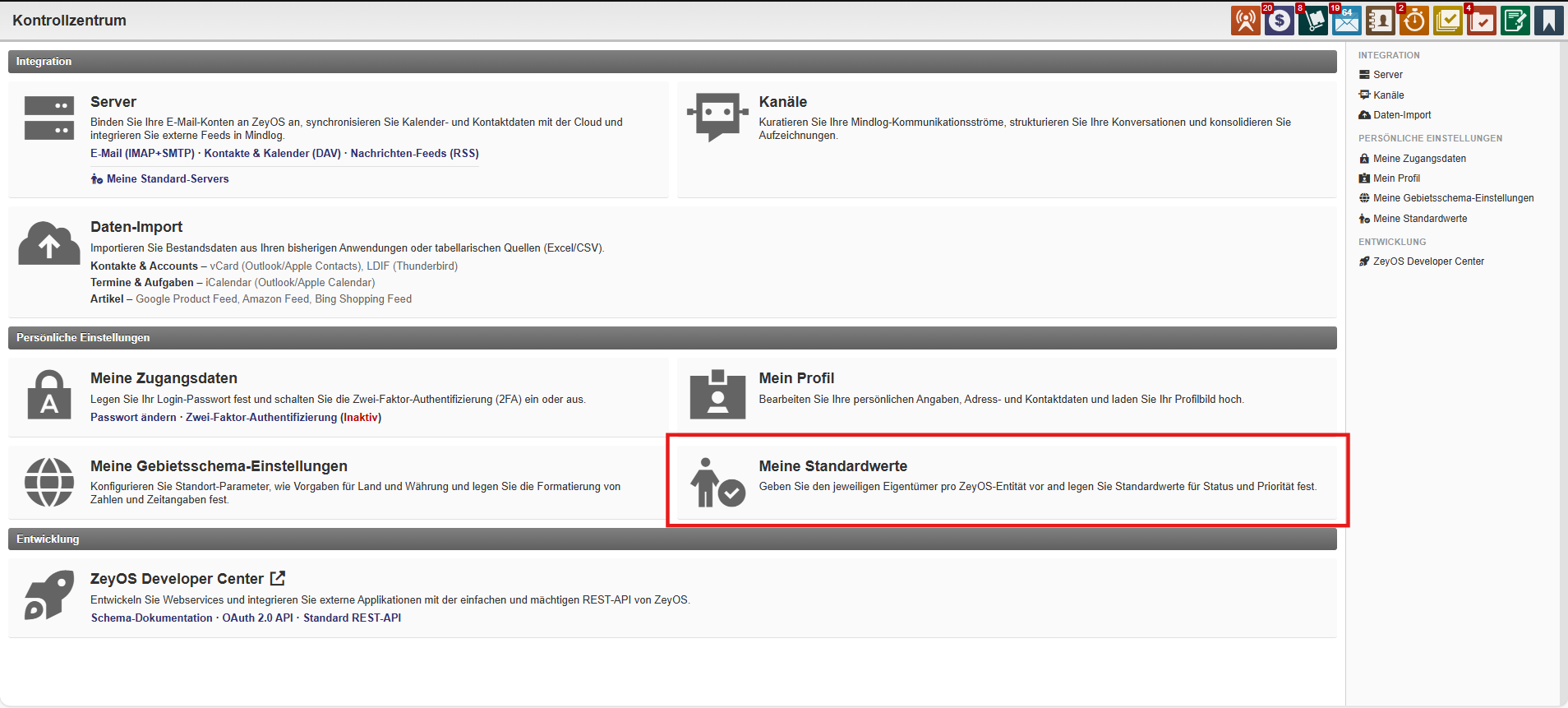
To change your personal settings, all you need to do is click on the photo of your account in the upper right corner. A menu will then open down, which will allow you to reach the Control Center.
Authentication
Update your password
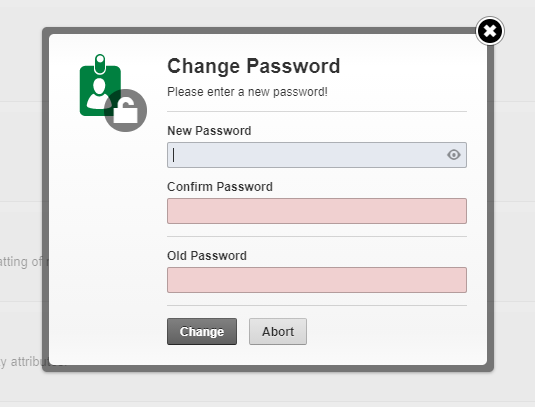
The password can be changed directly from dropdown menu and in the control center. To do this, you need to enter your old password in the designated field and then choose a new password. Once you have confirmed this, you can log in with your new password.
Enabling Two Factor Authentication
Two-factor authentication (2FA) serves as an additional level of security. In addition to the user name and an associated password, the account is protected by another query. In ZeyOS, this is a mobile device, such as a smartphone.
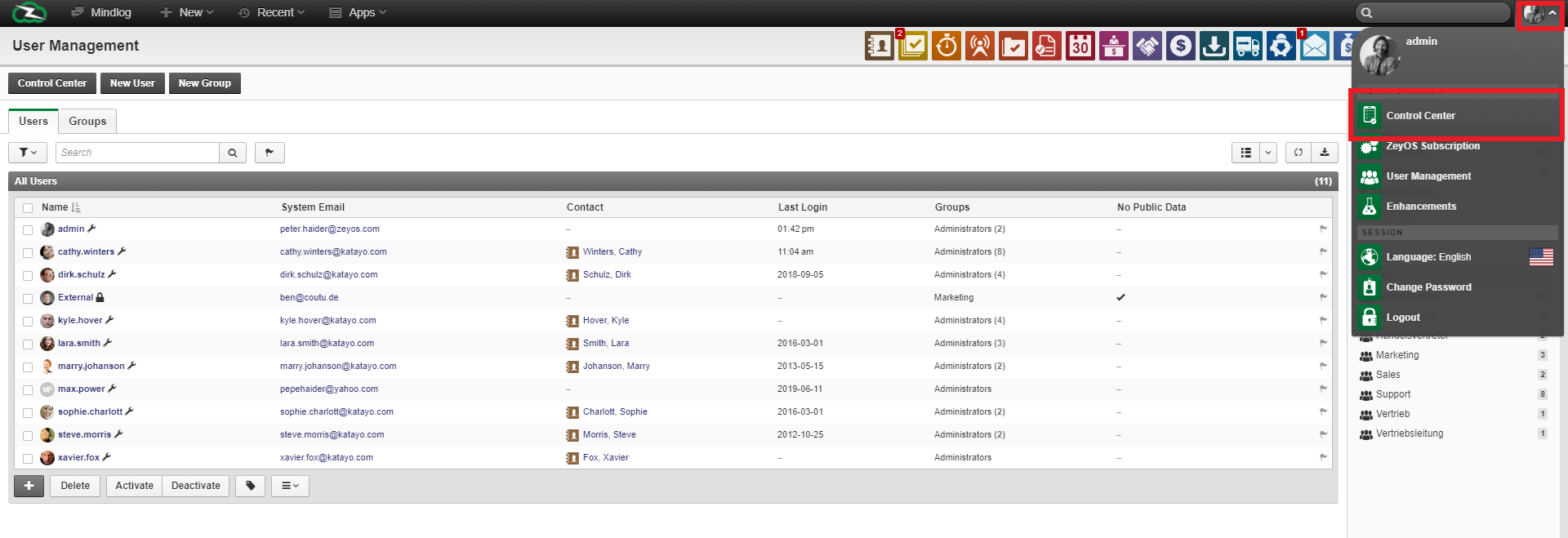
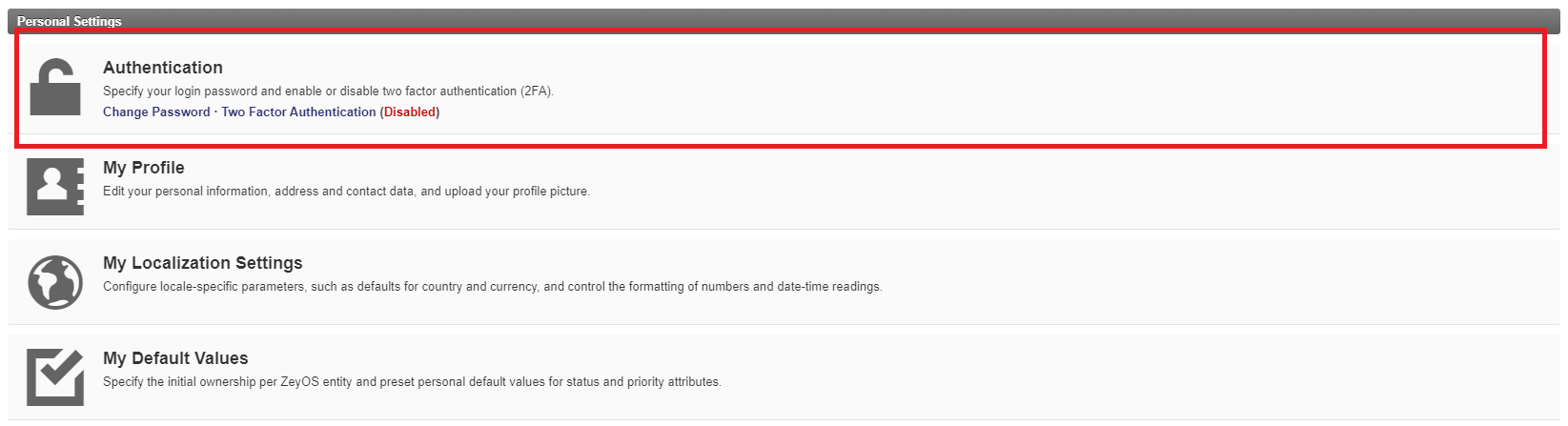
In addition to changing the password, you can see in the Authentication field whether two-factor authentication is active or inactive. Behind the corresponding link, this status is noted in parentheses. You can always switch the 2FA on or off there.
The additional backup works as follows:
- Install an OTP Generator app on your mobile device. Examples: OTP Auth, FreeOTP, Authy, Google Authenticator
- Link the app to ZeyOS by either scanning the displayed QR code or manually entering the security key, called OTP-Secret.
- You will then see a 6-digit validation code in the OTP Generator app, which you must now enter in the designated field in ZeyOS to complete the 2FA.
By clicking on Activate the 2FA is complete.
In the control center, the individual steps are explained again. So you will be guided through the activation of two-factor authentication.
Update your profile
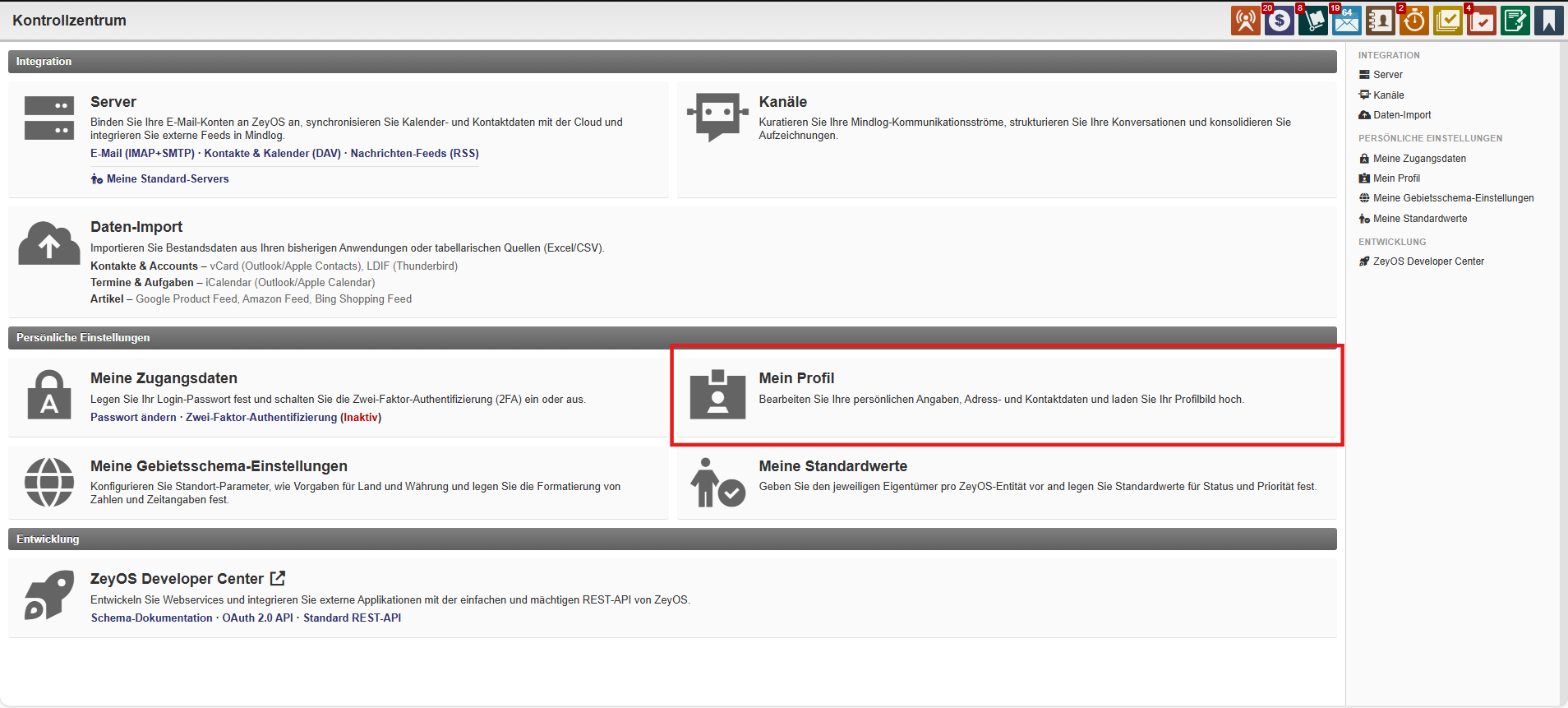
Under My Profile in the Control Center, you can complete or customize your personal information. This opens a form that asks for various information about the address and contact information. You can also change your profile picture, which is visible to other employees, by clicking it and selecting an image from your files. Don't forget to save the form after you fill in the fields you want.
Localization Settings
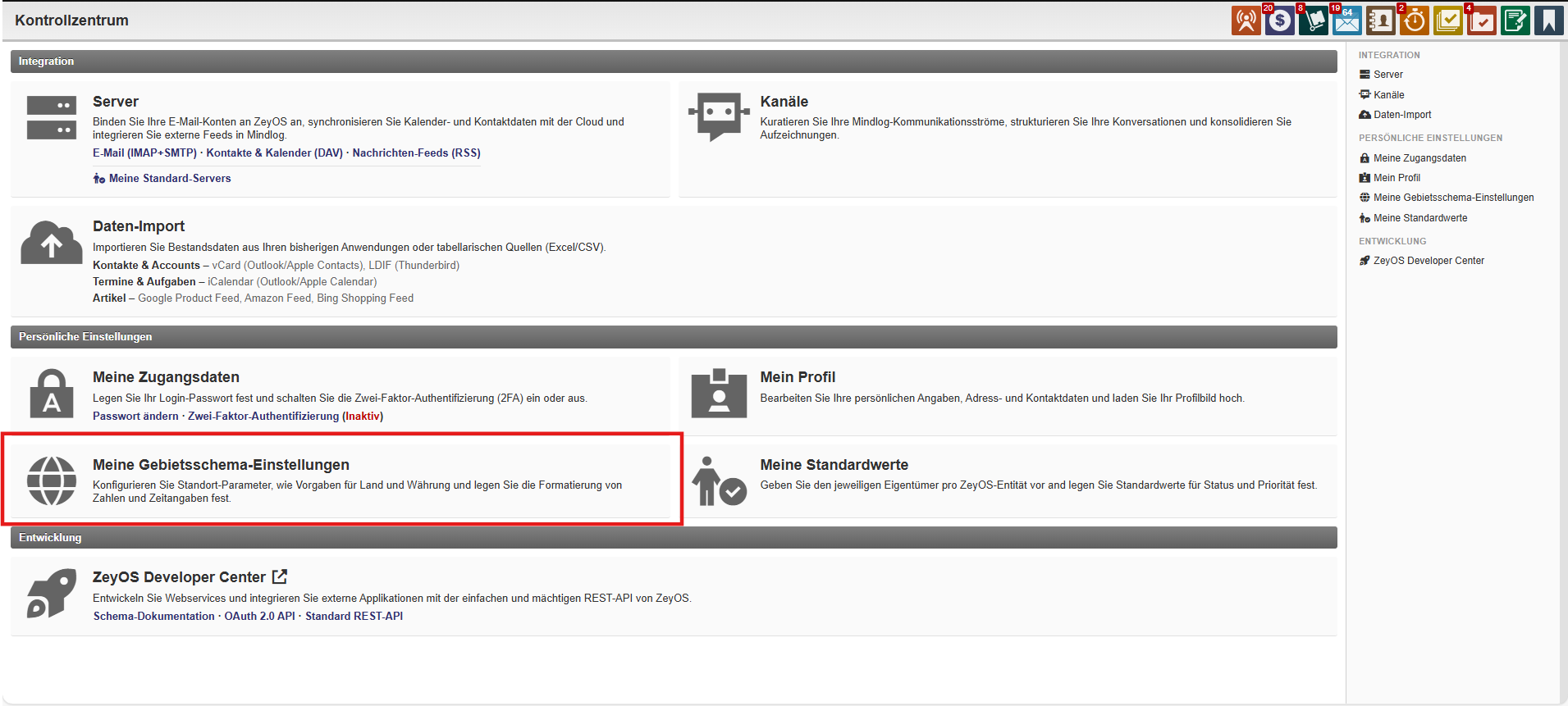
The localization settings allow you to personalize the formats used in your ZeyOS account. This includes dates and times, a different start to the week and parameters related to the location, such as the language or currency. Although you can change the desired language at any time in your profile - within the pop-up menu, which you can reach by clicking on your picture in the upper right - it is a good idea to choose the desired default language here, which should always be used immediately after registration. In addition, you can decide whether or not the prices are typed gross.
The call URL is automatically linked to programs that can handle callto URLs; this includes, for example, Skype. If you specify your phone number here, the number behaves similarly to a URL. In this case, this means that the incoming call is automatically made via the respective linked software by clicking on the number, provided that you have installed a suitable software on your device.
After you have entered your changes, click Save to activate the settings.
My Default Values
Defining the default values allows you to determine the owners, status, and priority of the items generally used in ZeyOS .
By reducing the owners of a function, you can restrict who is allowed to view and edit which data. For more information, please read the article Access Authorization.
In the form, you select the owner you want for that entity. Together means that the entity can be viewed by anyone, whereas you restrict access to the entity when you select a group. This means that only members of the group can access the entity.
You can also determine the status that is shown by default, as well as the basic priority. These values only apply as default values and can always be changed manually in the table for individual objects where the status or priority differs from the default value. Nevertheless, it is a good place to personalize the values in order to save work steps.