Accounts
For more information about creating and editing users and groups, as well as adding users to groups, read the articles in the Administration chapter.
Activating, deactivating and deleting users
In the user management, which you can reach via your profile picture in the upper right corner, users can be activated, deactivated and deleted.
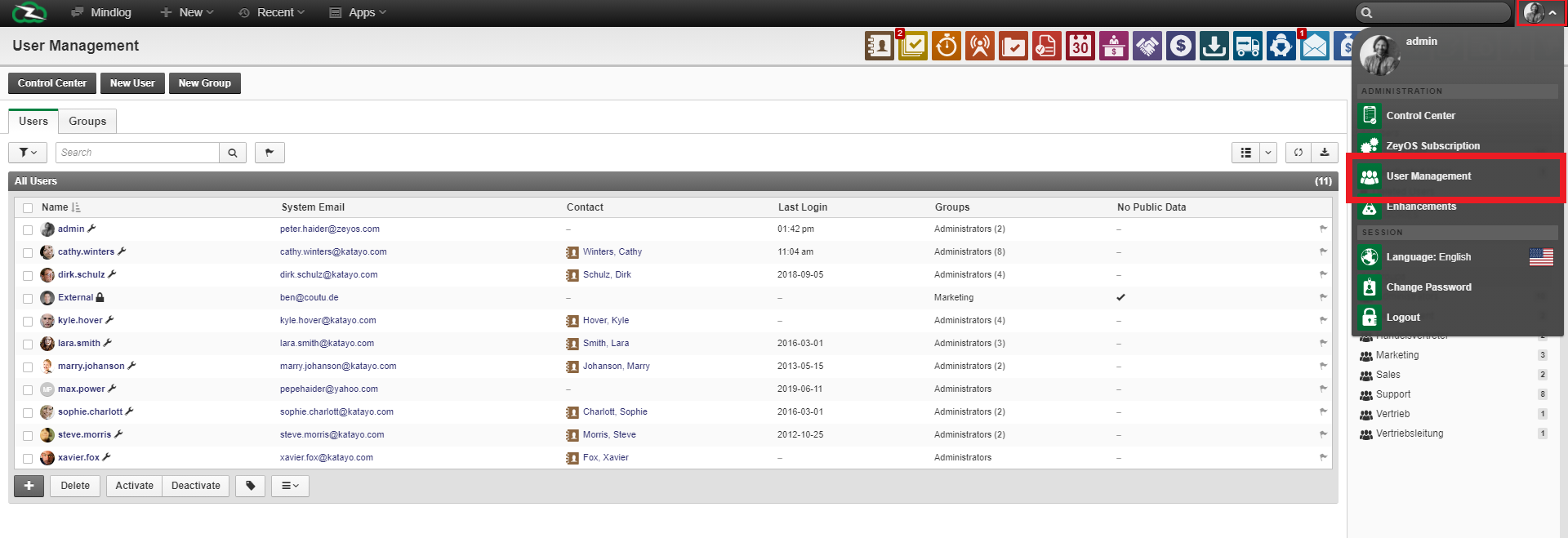
To perform one of the actions, place a check mark on the respective user and click on the desired field below the table.
Hint You will only be charged for active users. Once you deactivate a user, it will not appear on your next billing cycle. The lock behind a user means that he is currently disabled.
When you delete a user, all data references are removed.
Restricting access to public users
If employees should not have access to the platform but need to exchange data with ZeyOS via other applications, external employees can be created. Since a profile cannot be shared by several employees and you pay per user, it is a good way to place employees who do not need to use the platform as external users for cost reasons.
The employee still behaves like a user in the system: his work steps can be logged, he can be added to appointments, etc., but he cannot behave like a user within the platform and manage the applications, as he does not receive log-in data.
In user management, new users can be created and existing users can be edited. There is, among other things, the switch "API only" (application programming interface).
This switch automatically sets up the user so that he cannot log in to the ZeyOS user interface, but his profile remains free of charge.
For more information, please read the article User Management.
Changing your own password
There are two ways to access the menu where you can change your password: both directly from the menu that opens down when you click on your profile picture at the top right, and through the control center you can reach in the same way.
To change the password, you must enter your old password in the designated field and then select a new password. Once you have confirmed this, you can log in with your new password.